DualSense
UNDER THE SURFACE.
Beyond the shell. Into every input.
V1 · CFI-ZCT1W · BDM-010
Reference: FCC ID AK8CFIZCT1 and motherboard BDM-010. Read the rear label; CFI-ZCT1W alone does not identify the internal revision.
BDM-020 and later controllers, and DualSense Edge, use different layouts. A removable rubber stick cap is not the soldered joystick module.
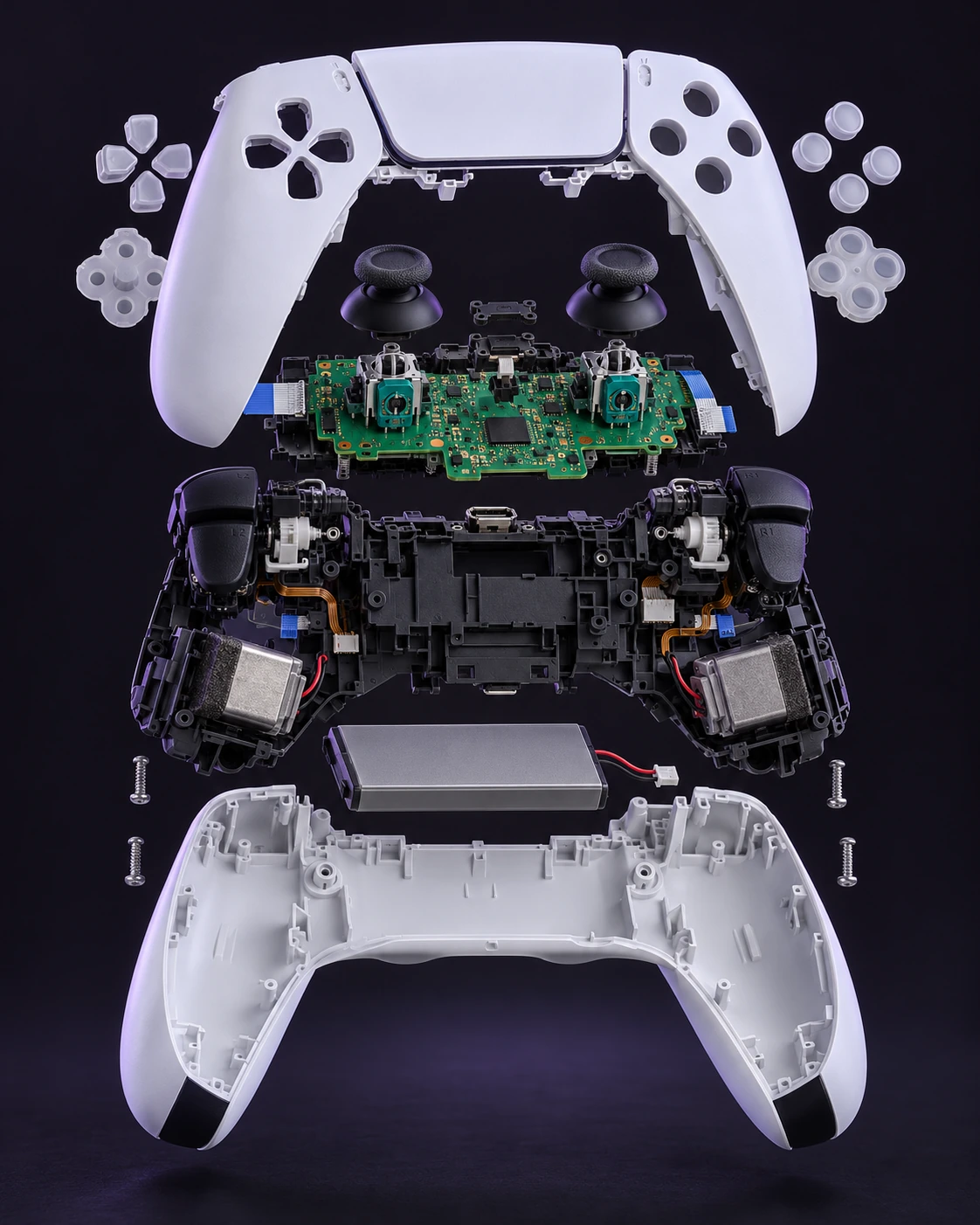
AI-generated product illustration. Internal shapes, positions and fasteners may differ from your actual device.
View photographic technical referencesCentre trim
Release the cosmetic trim before deeper access.
Signs to investigate
- Cracked trim
- Loose clips
Prepare your bench
- Plastic opening pick
- Non-metallic spudger
- Organised screw tray
Component procedure
- 01
Turn off the controller and unplug USB.
- 02
Start a plastic pick at a lower trim corner. Work along the edge to release successive clips; repeat on the other side.
- 03
Free the remaining clips and guide the trim over both sticks.
- 04
Align the matching replacement and engage its clips evenly.
Stop if the shell bends instead of a clip releasing.
The trim sits level and both sticks move freely.
Restore all covers, shielding and cable routing before powered tests. Keep each screw in its original position. If fit or resistance changes, reopen and inspect rather than tightening harder.
Technical reference & evidence
Original notes by VICEPULSE, checked against the reference below. These are concise component notes; use the matched photographic reference for exact fastener locations and connector details. The AI-generated product render is illustrative, not a service drawing.
iFixit original repair guide ↗Source-checked on 31 October 2026. VICEPULSE has not bench-tested this procedure. Internal part fit must be verified against your actual revision.
All DualSense component guides
Release the cosmetic trim before deeper access.
Read guide ↗01 / Shell & trimL1 and R1 bumpersRemove the external shoulder-button caps.
Read guide ↗06 / Rear shellRear shellOpen the back cover without tearing its clips.
Read guide ↗05 / PowerBattery packReplace the plug-connected battery after testing the charging cable.
Read guide ↗02 / InputsAnalog-stick capsReplace the removable caps rather than the electrical joystick mechanism.
Read guide ↗03 / LogicJoystick modules and driftA drifting sensor module is soldered to the board; changing the cap will not fix it.
Read guide ↗02 / InputsButtons and silicone membranesService the D-pad, face buttons and their conductive silicone pads.
Read guide ↗01 / Shell & trimFront shellTransfer the complete button and touchpad layout into a matching shell.
Read guide ↗04 / MidframeBuilt-in speakerService the small speaker and its pressure contacts.
Read guide ↗04 / MidframeMicrophone assembliesService the microphone flex assemblies while preserving their routing.
Read guide ↗02 / InputsTouchpad assemblyReplace the touch surface, bracket and flex as a matched assembly.
Read guide ↗04 / MidframeL2 and R2 trigger assembliesService a complete adaptive-trigger assembly rather than guessing at individual gears.
Read guide ↗04 / MidframeHaptic actuatorsThe actuators are wired to the board and need soldered service.
Read guide ↗03 / LogicLight diffuserReplace the optical light guide when its plastic is damaged.
Read guide ↗03 / LogicMainboard, USB-C and audio connectionService the board and its connectors only after cable and software checks.
Read guide ↗